
If you would like to see which websites are currently using your license, or if you want to remove a website from your license, first log in to our customer portal at https://service.borlabs.io/login.
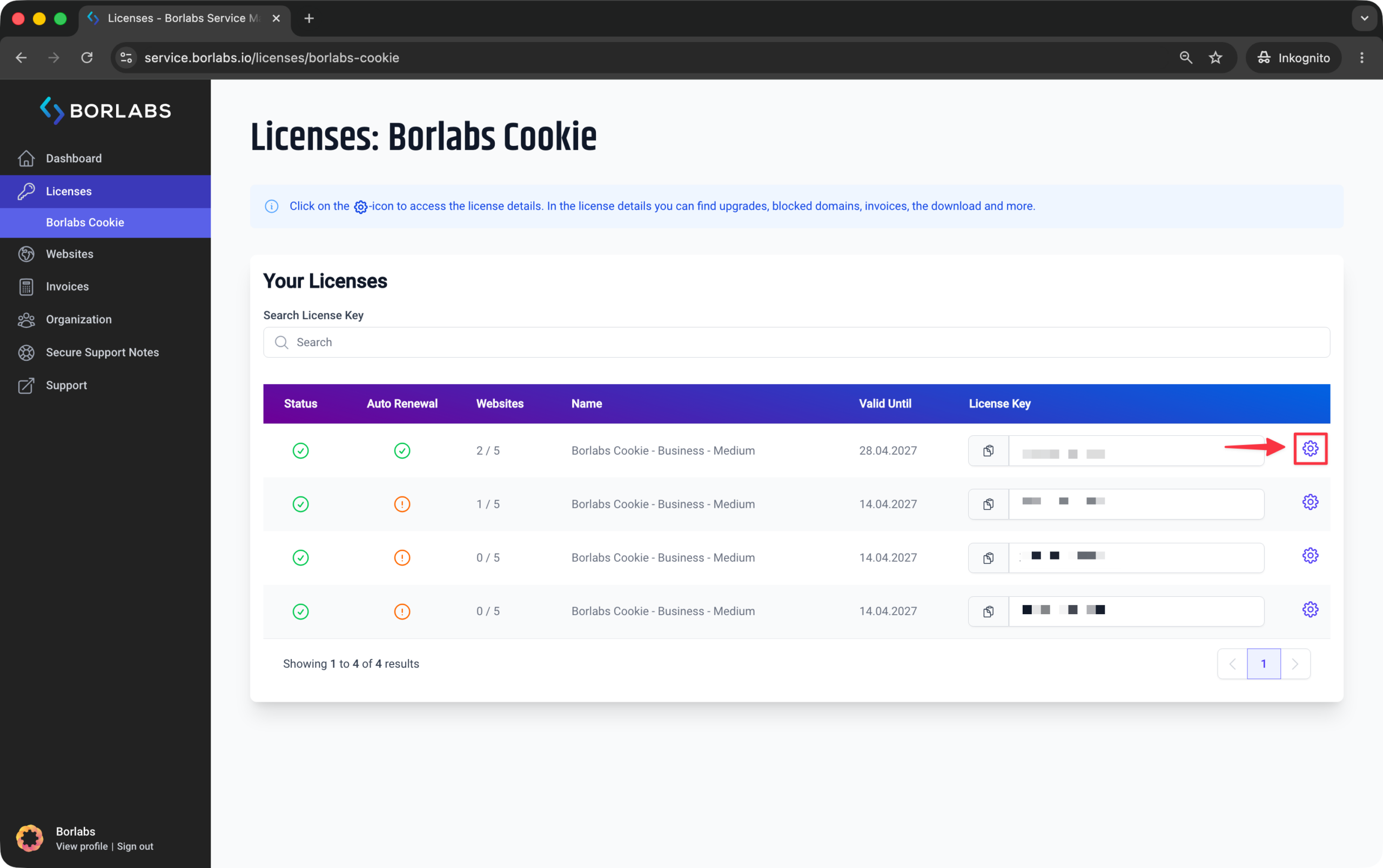
Then click "Licenses" or "Borlabs Cookie" and select the gear icon for the relevant license.
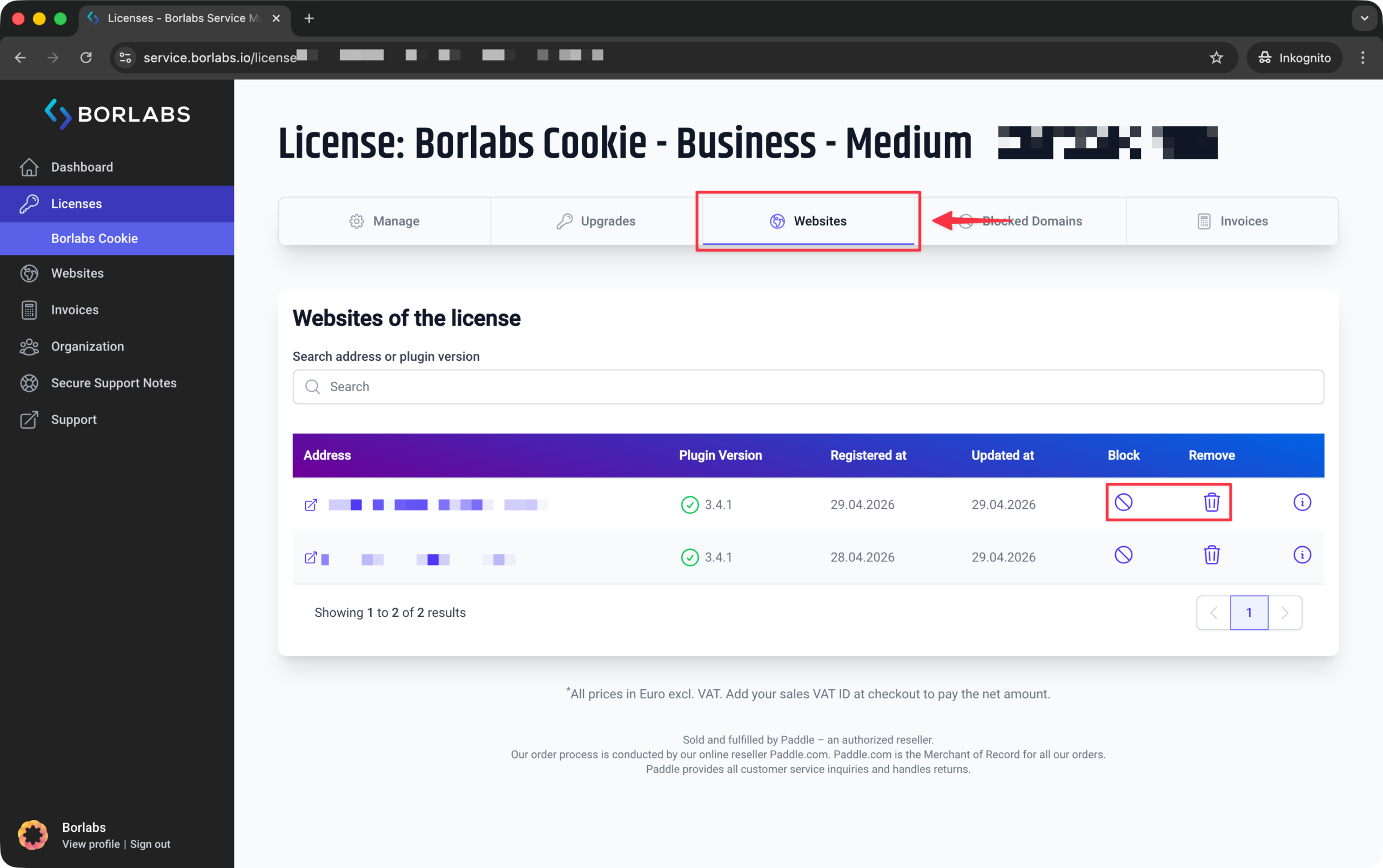
In the license details, open the "Websites" tab. This tab lists all websites and URLs on which the license is currently active.
On the left-hand side, you will see all domains where the license key has been activated. To block or remove a website, click the corresponding Block or Remove icon on the right.
Difference between removing and blocking:
Use the "Block" function only if the domain, including all of its subdomains (for example, "www"), should no longer be used with your licence.
When a domain is blocked, it is locked and cannot be registered again. For example, if "www.customer-site.example" is registered and you block the domain, related subdomains such as "customer-site.example" or "shop.customer-site.example" can no longer be registered with the license.
Blocking a domain is especially useful if you no longer have access to the website and therefore cannot remove the license key from the installation itself.
If you block a website, the domain is added to the list of "Blocked Domains".
Please note that a removed website may reappear in the list if your license still has unused website slots available. If you want to prevent a website from being registered again, you must block it.
The "Remove" function should be used when your quota has already been used up and you want to replace an existing website with another one.