
During Checkout
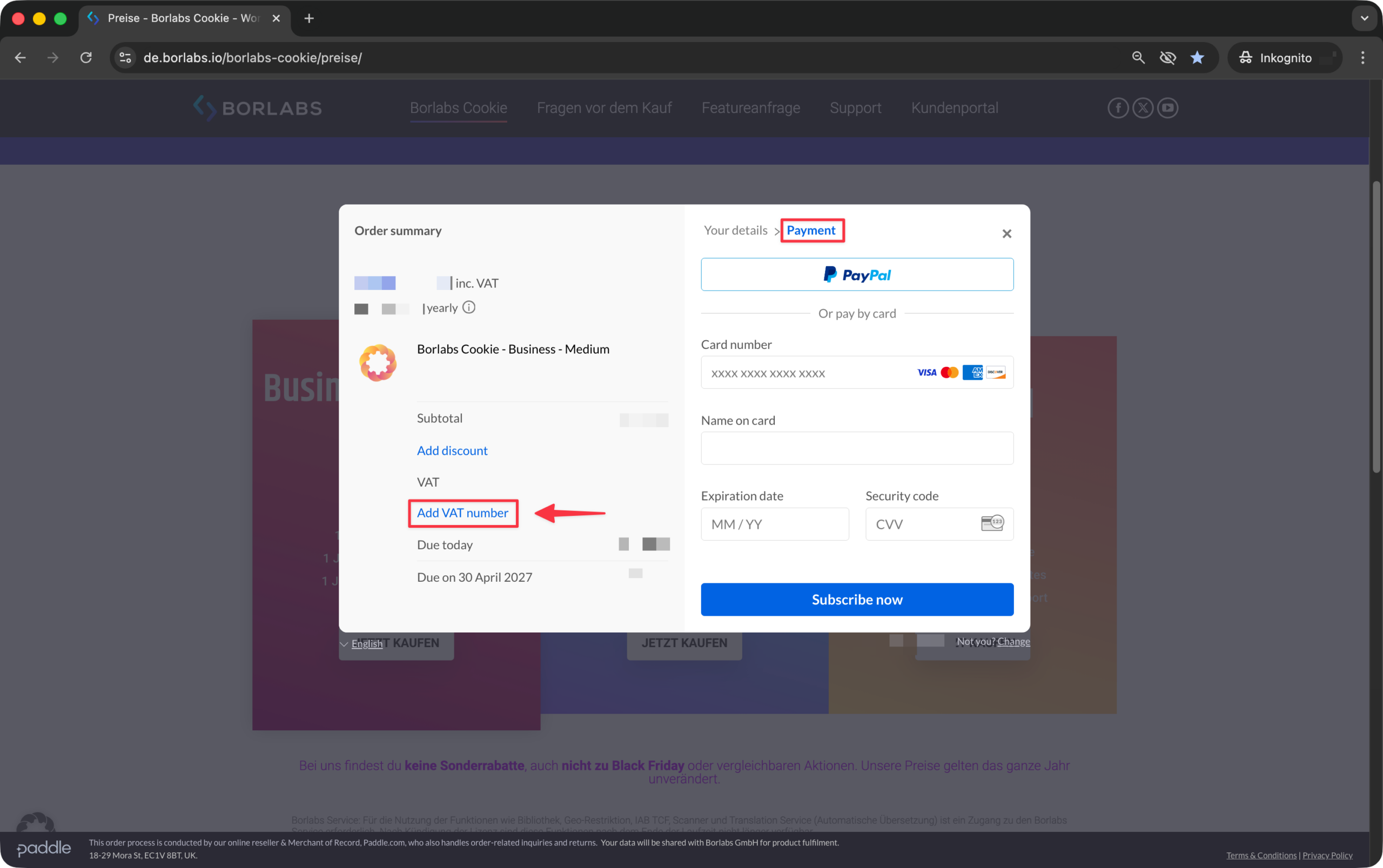
After entering your email address and postal code during checkout, you will have the option to add your VAT ID on the payment methods page.
To do so, click "Add VAT number" and enter your VAT ID. Please omit the country prefix when entering the number. For example, enter the VAT ID without DE.
After Purchase
Log in to the customer portal at https://service.borlabs.io/.
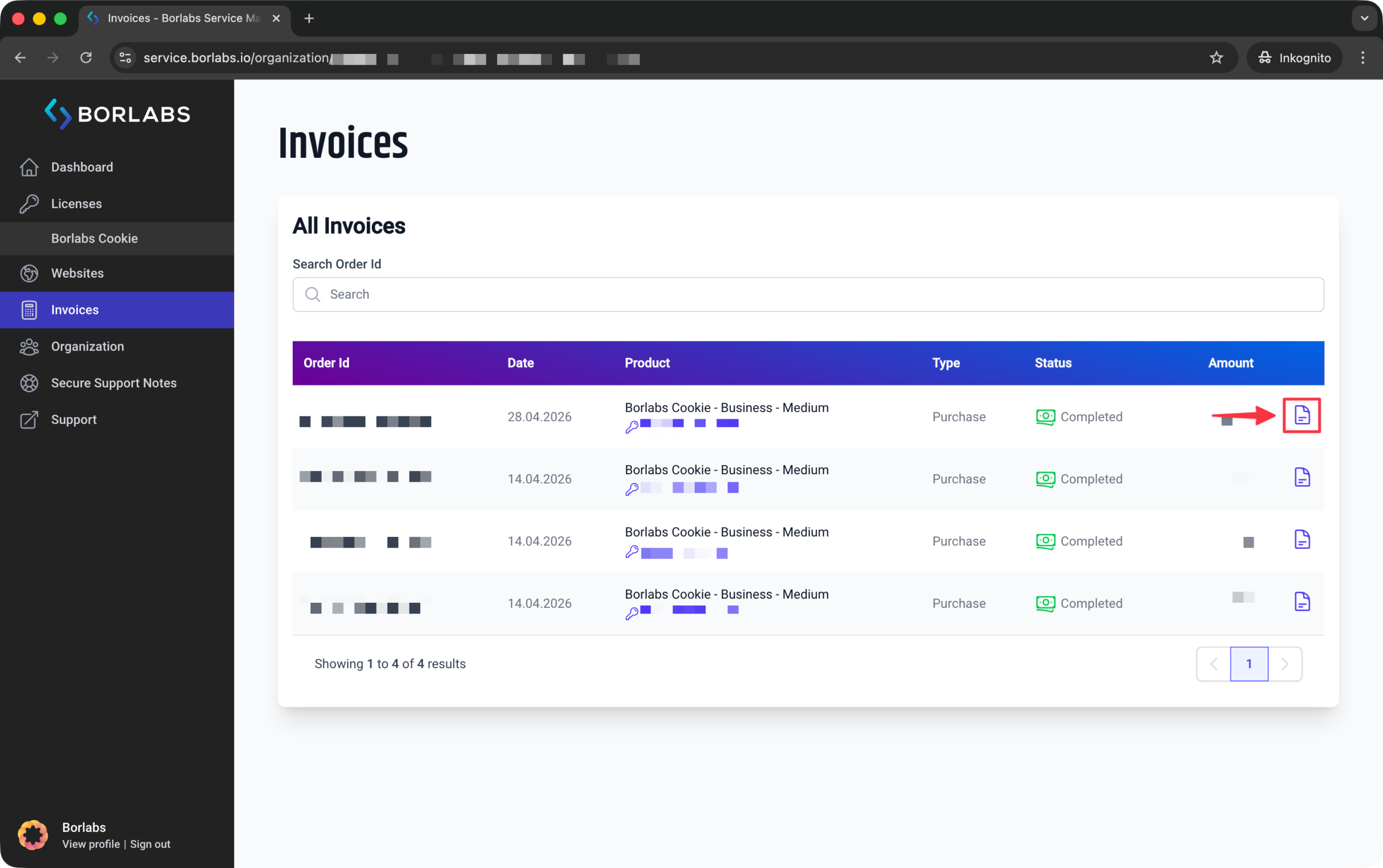
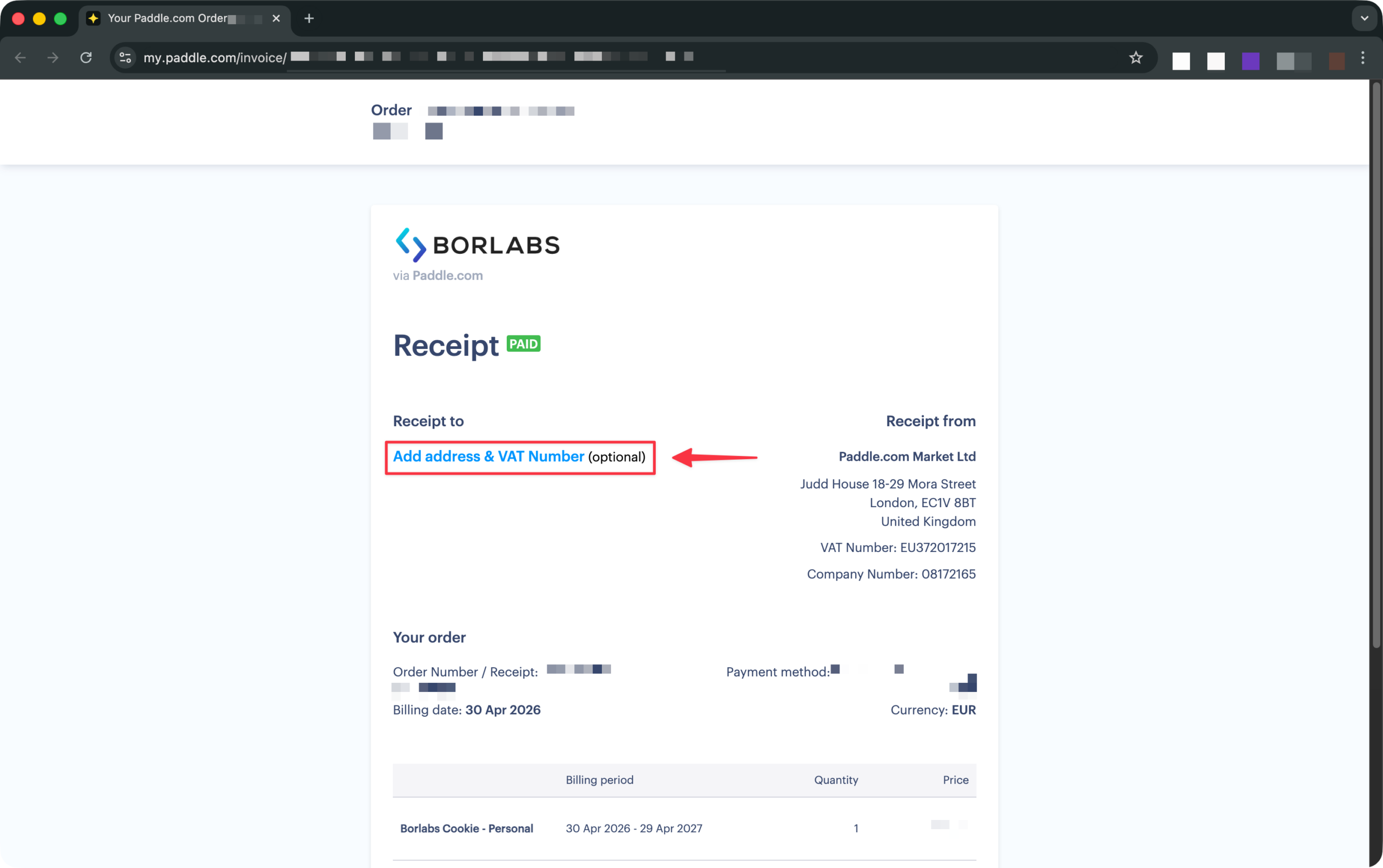
Within the invoice, click "Add address & VAT Number".
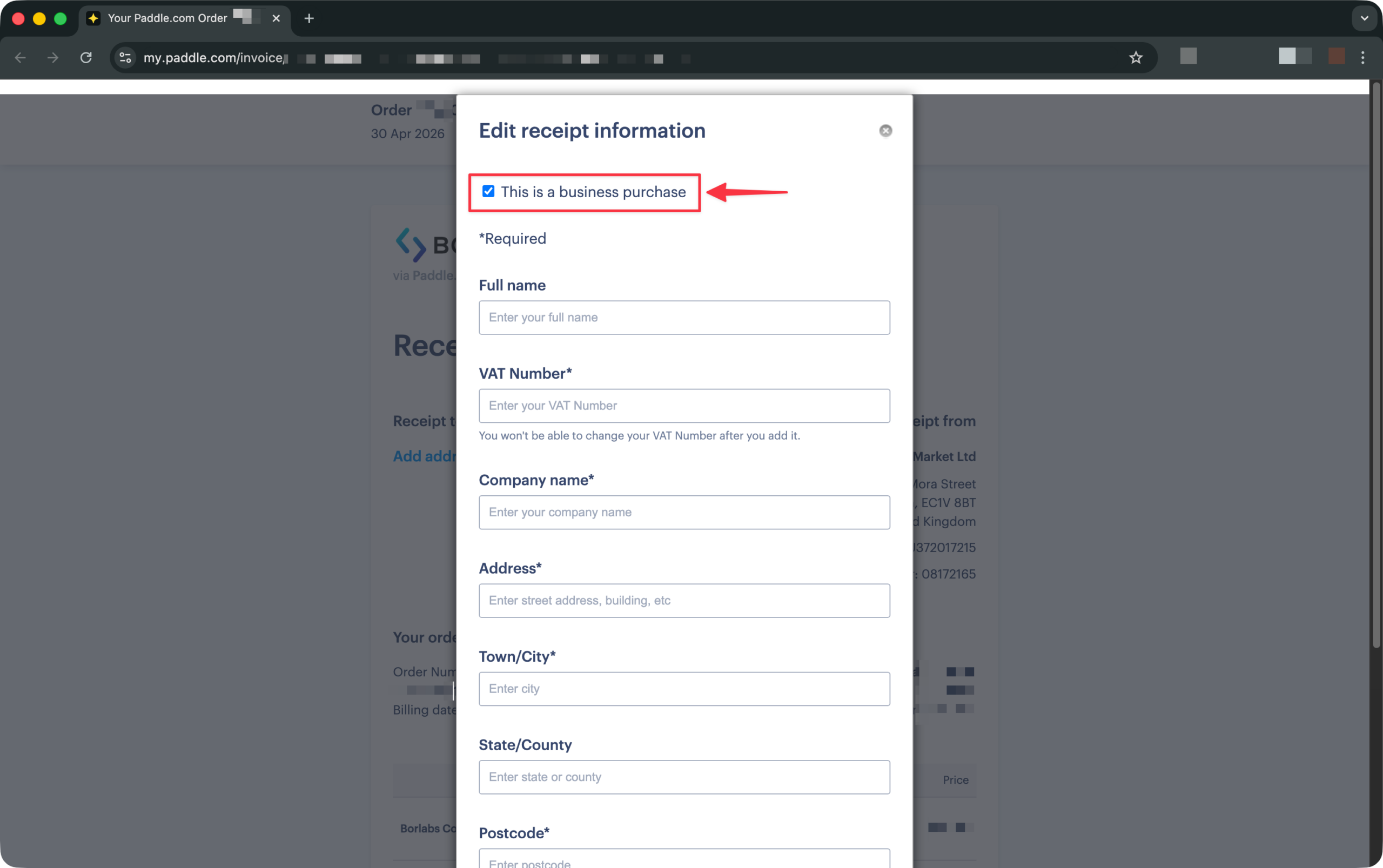
Enable the "This is a business purchase" checkbox. This will display the field where you can enter your VAT ID.
Paddle will refund the VAT within 1–2 business days. Your invoice will then be updated accordingly and will no longer show a VAT amount.
Please note that VAT refunds are only possible within 60 days of purchase, and Paddle does not issue separate credit notes or refund documents.
Once the refund has been processed, the existing invoices will be updated automatically.
Keywords: UID, sales tax number, sales tax identification number